
Funcionalidades
Constructor de fórmulas
Cómo crear y editar fórmulas con bloques o con código, validarlas mientras escribes y probarlas sobre una issue real antes de guardar.
Crear un campo
En la pestaña Fields, pulsa + New Field, escribe el nombre que verán los usuarios en Jira y pulsa Create field. La app crea el custom field en Jira y abre su ficha. También puedes partir de una plantilla.
La ficha de cada campo tiene seis pestañas:
| Pestaña | Contenido |
|---|---|
| Overview | Resumen: fórmula, funciones que usa, estado de la actualización automática y actividad reciente. |
| Formula | El constructor y la prueba sobre una issue. |
| Scope | Proyectos y tipos de issue donde aparece. Ver Alcance. |
| Triggers | Cuándo se recalcula solo. Ver Actualización automática. |
| Recompute | Cálculo en bloque. Ver Recálculo. |
| Audit | Historial de cambios y cálculos. Ver Actividad y registros. |
Modo Blocks
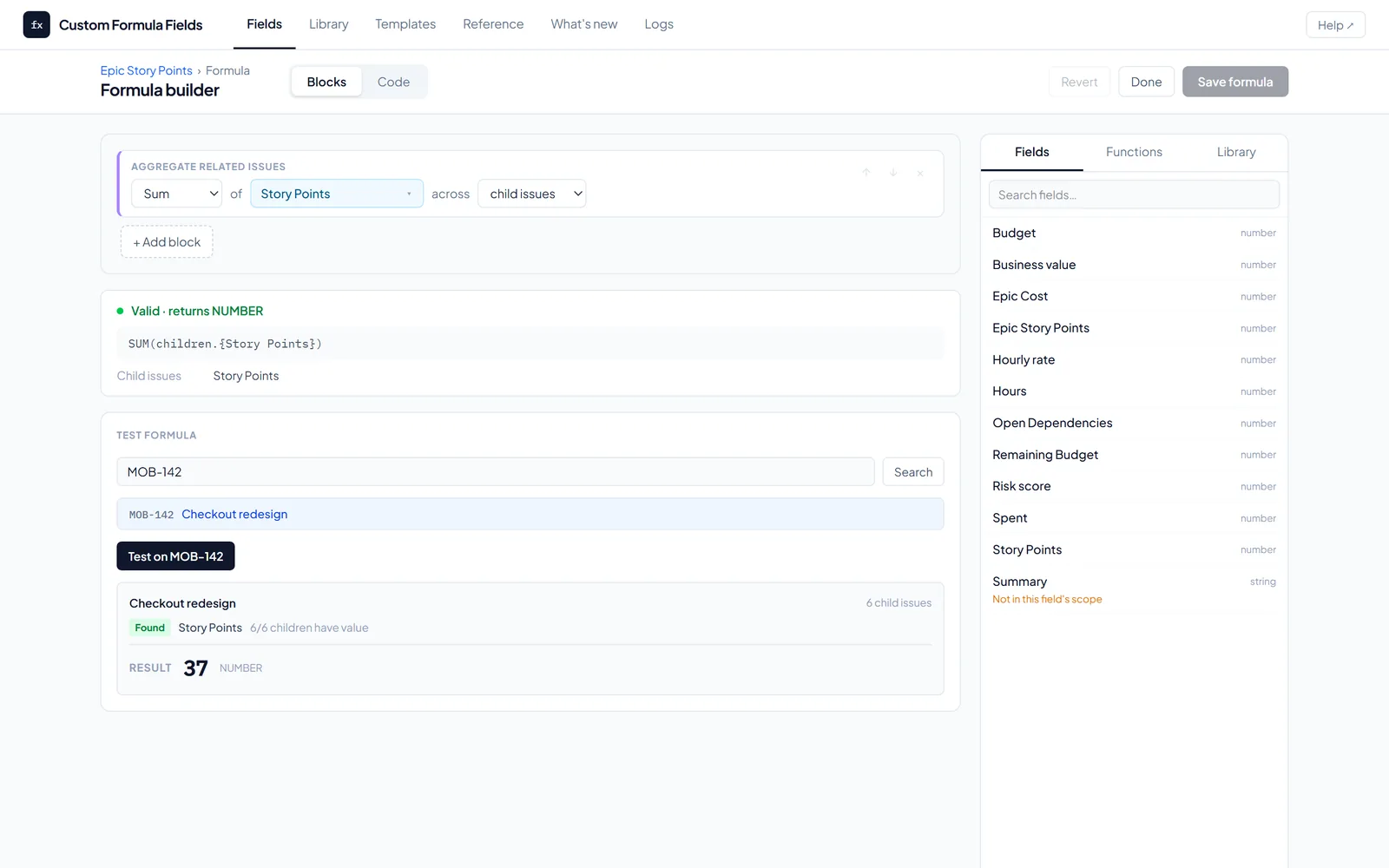
Pensado para empezar sin aprender la sintaxis. Añades bloques y los unes con + − × ÷. Cada bloque es una pieza:
| Bloque | Qué aporta | Equivale a |
|---|---|---|
| Aggregate related issues | Suma, media, mínimo, máximo o mediana de un campo en las hijas o en las enlazadas | SUM(children.{Campo}) |
| Count related issues | Cuántas hijas o enlazadas hay | COUNT(children) |
| Field of this issue | Un valor numérico de la propia issue | VAL({Campo}) |
| Number | Un número fijo, como 8 o 0.19 | 0.19 |
| Library value | Una variable o un fragmento de la Library | tarifaHora |
| Group ( … ) | Agrupa bloques antes de aplicar un operador | ( … ) |
Modo Code
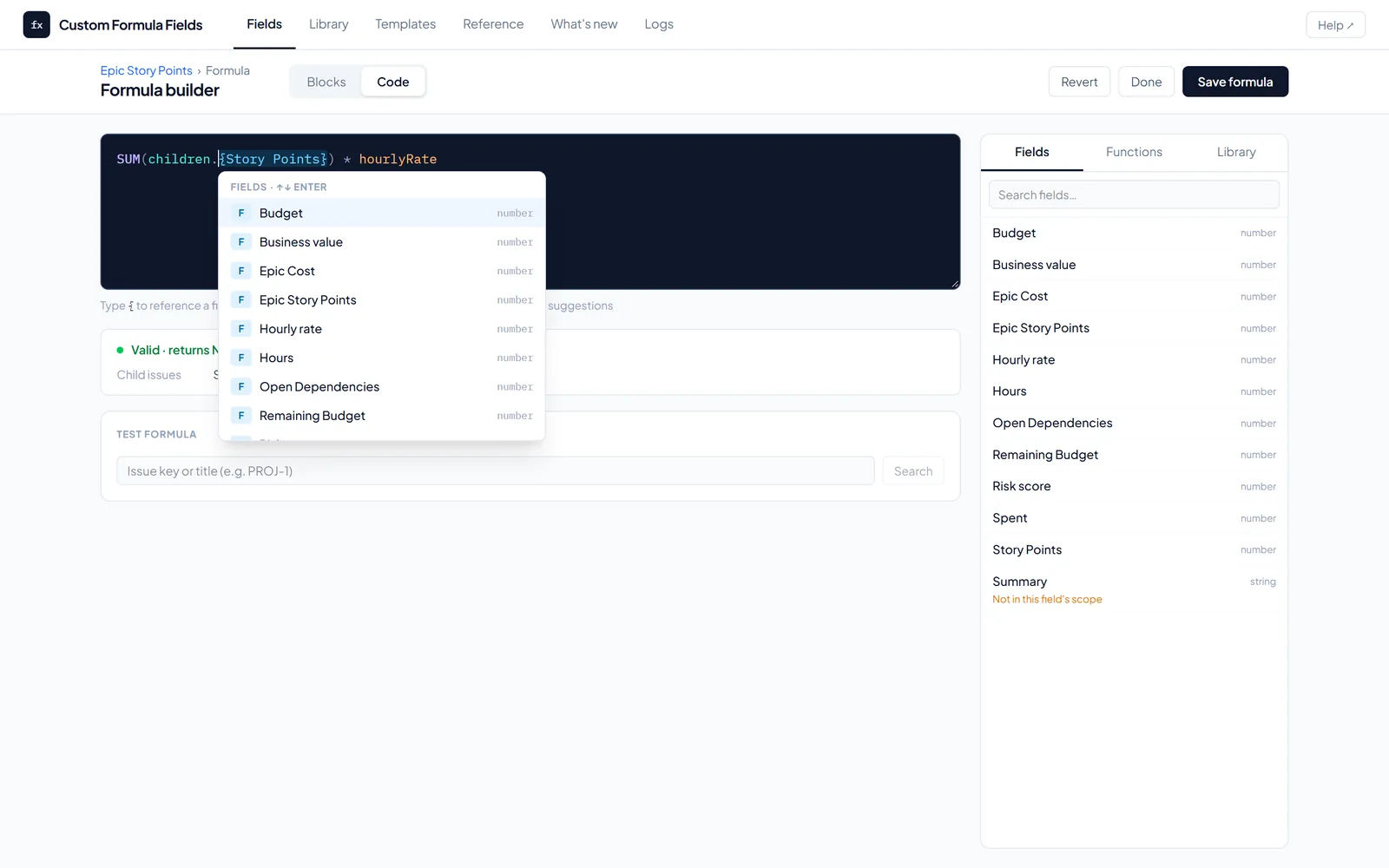
Escribes la fórmula con ayudas mientras tecleas:
- Escribe
{para elegir un campo por su nombre. Queda como{Story Points}. - Escribe
children.olinkedIssues.para ver los campos de esas issues. - Pulsa Ctrl+Espacio para ver funciones, colecciones y valores de la Library.
Puedes cambiar de modo cuando quieras. Las fórmulas que usan EACH, TOLIST o lambdas solo se
pueden editar en modo Code; el modo Blocks te lo indicará.
Validación mientras escribes
Debajo del editor la app te dice, sin guardar nada:
- si la fórmula es válida y, si no, dónde está el error;
- qué campos lee y de dónde (la propia issue, las hijas o las enlazadas);
- si algún campo no es numérico: las funciones numéricas lo tratarán como vacío;
- si algún campo no existe en el alcance del campo fórmula.
Probar sobre una issue
En Test formula, busca una issue por clave o por texto y pulsa Test on. Verás el resultado, cuántas hijas tiene y cuántas tienen cada campo. La prueba no escribe nada en Jira.
Prueba con casos raros
Prueba también con una issue sin hijas o con campos vacíos para ver qué valor queda. Ver Valores vacíos.
Guardar
Al guardar, la fórmula se aplica a partir de ese momento: las reglas de actualización automática se ajustan a lo que lee la nueva fórmula. Las issues que ya tenían valor no cambian hasta que algo las toque o lances un recálculo.
Campos por nombre
Escribes {Story Points} y la app guarda el identificador interno (customfield_10016). Si
renombras el campo en Jira, la fórmula sigue funcionando y se muestra con el nombre nuevo. Si dos campos tienen el
mismo nombre, la app usa el identificador para no confundirlos.
SUM(children.{Story Points})es lo mismo que:
SUM(children.customfield_10016)Otras acciones del campo
- Copiar el ID del campo, útil para JQL o la API REST de Jira.
- Duplicar un campo: copia la fórmula, los triggers y los contextos en un campo nuevo.
- Borrar el campo: se elimina de Jira y de todas las issues. No se puede deshacer.
Features
Formula builder
How to create and edit formulas with blocks or code, validate them as you type and test them on a real issue before saving.
Create a field
In the Fields tab, click + New Field, type the name users will see in Jira and click Create field. The app creates the custom field in Jira and opens it. You can also start from a template.
Each field has six tabs:
| Tab | Content |
|---|---|
| Overview | Summary: formula, functions used, automatic update status and recent activity. |
| Formula | The builder and the test on an issue. |
| Scope | Projects and issue types where it appears. See Scope. |
| Triggers | When it recalculates by itself. See Automatic updates. |
| Recompute | Bulk calculation. See Recompute. |
| Audit | History of changes and calculations. See Activity and logs. |
Blocks mode
Made for getting started without learning the syntax. You add blocks and join them with + − × ÷. Each block is one piece:
| Block | What it adds | Same as |
|---|---|---|
| Aggregate related issues | Sum, average, minimum, maximum or median of a field across child or linked issues | SUM(children.{Field}) |
| Count related issues | How many child or linked issues there are | COUNT(children) |
| Field of this issue | A numeric value from the issue itself | VAL({Field}) |
| Number | A fixed number, such as 8 or 0.19 | 0.19 |
| Library value | A Library variable or fragment | hourlyRate |
| Group ( … ) | Combines blocks before applying an operator | ( … ) |
Code mode
You type the formula, with help as you go:
- Type
{to pick a field by name. It becomes{Story Points}. - Type
children.orlinkedIssues.to see the fields of those issues. - Press Ctrl+Space to see functions, collections and Library values.
You can switch modes at any time. Formulas that use EACH, TOLIST or lambdas can only be
edited in Code mode; Blocks mode will tell you.
Validation as you type
Under the editor the app tells you, without saving anything:
- whether the formula is valid and, if not, where the error is;
- which fields it reads and from where (the issue itself, children or linked issues);
- whether a field isn't a number: numeric functions will treat it as empty;
- whether a field doesn't exist in the formula field's scope.
Test on an issue
In Test formula, search for an issue by key or text and click Test on. You'll see the result, how many children it has and how many have each field. A test writes nothing to Jira.
Test the odd cases
Also try an issue without children or with empty fields to see what value you get. See Empty values.
Save
When you save, the formula applies from then on: the automatic update rules adjust to what the new formula reads. Issues that already had a value don't change until something touches them or you run a recompute.
Fields by name
You type {Story Points} and the app stores the internal id (customfield_10016). If you
rename the field in Jira, the formula keeps working and shows the new name. If two fields share a name, the app uses
the id so they don't get mixed up.
SUM(children.{Story Points})is the same as:
SUM(children.customfield_10016)Other field actions
- Copy the field ID, handy for JQL or the Jira REST API.
- Duplicate a field: copies the formula, triggers and contexts into a new field.
- Delete the field: it is removed from Jira and from every issue. It cannot be undone.
¿No encuentras algo? Escríbenos aCan't find something? Write to contacto@fluxor-tech.com · Ver la ficha del productoSee the product page