
Funcionalidades
Lista de dashboards
La pantalla principal: tus dashboards y los compartidos contigo, cómo crear, buscar, copiar, exportar y eliminar.
Qué muestra
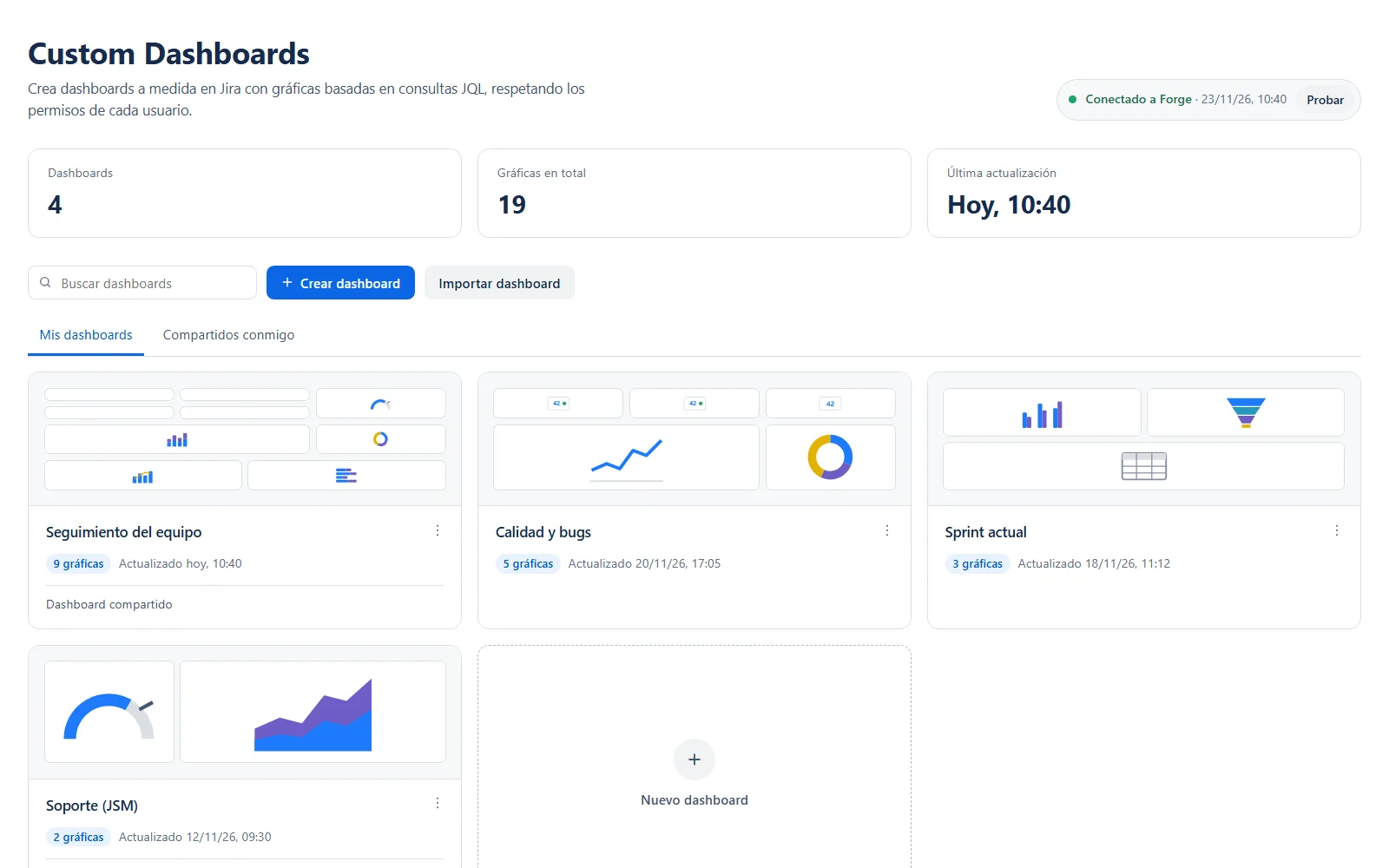
Arriba, tres cifras de tus dashboards: cuántos tienes, cuántas gráficas suman y cuándo cambió el último. Debajo, el buscador, los botones Crear dashboard e Importar dashboard, y dos pestañas:
- Mis dashboards: los que has creado. Los que has compartido con alguien llevan la etiqueta Dashboard compartido.
- Compartidos conmigo: los de otras personas, con su propietario (De ‹nombre›) y tu nivel: Puede ver o Puede editar.
Crear un dashboard
- Pulsa Crear dashboard o la tarjeta Nuevo dashboard.
- Escribe el nombre (hasta 100 caracteres) y añade gráficas.
- Pulsa Guardar. Si sales antes, la app te pregunta si quieres descartarlo.
Cada persona puede tener hasta 20 dashboards propios durante la beta. Los compartidos contigo no cuentan.
Buscar y abrir
El buscador filtra por nombre en la pestaña abierta, sin distinguir mayúsculas ni acentos. Pulsa en cualquier punto de la tarjeta para abrir el dashboard.
Copiar y exportar
El menú ⋮ de cada tarjeta, y el botón de ajustes (rueda dentada) dentro de un dashboard, tienen dos opciones:
| Opción | Qué hace |
|---|---|
| Copiar | Crea un dashboard nuevo tuyo con las mismas páginas, gráficas, disposición y filtro fijo. Propone el nombre Copia de ‹nombre› y conserva los resultados guardados. No copia con quién estaba compartido. |
| Exportar | Descarga la definición en un archivo .cdash.json para importarla en otro sitio. Ver Importar y exportar. |
Puedes copiar y exportar cualquier dashboard que veas, también los compartidos contigo con Puede ver.
Eliminar un dashboard
- Abre el dashboard y pulsa Editar.
- En el botón de ajustes, elige Eliminar dashboard y confirma.
No se puede deshacer
Se borran el dashboard y todas sus gráficas, también para las personas con las que estaba compartido. Solo el propietario puede eliminarlo.
Features
Dashboard list
The main screen: your dashboards and the ones shared with you, and how to create, search, copy, export and delete them.
What it shows
At the top, three figures about your dashboards: how many you have, how many charts they add up to and when the latest one changed. Below, the search box, the Crear dashboard (create) and Importar dashboard (import) buttons, and two tabs:
- Mis dashboards (my dashboards): the ones you created. Those you've shared with someone are labeled Dashboard compartido (shared dashboard).
- Compartidos conmigo (shared with me): other people's dashboards, with the owner (De ‹name›) and your level: Puede ver (can view) or Puede editar (can edit).
Create a dashboard
- Click Crear dashboard or the Nuevo dashboard (new dashboard) card.
- Type the name (up to 100 characters) and add charts.
- Click Guardar (save). If you leave earlier, the app asks whether to discard it.
Each person can own up to 20 dashboards during the beta. Dashboards shared with you don't count.
Search and open
The search box filters by name in the open tab, ignoring case and accents. Click anywhere on a card to open the dashboard.
Copy and export
The ⋮ menu on each card, and the settings button (gear) inside a dashboard, have two options:
| Option | What it does |
|---|---|
| Copiar (copy) | Creates a new dashboard of yours with the same pages, charts, layout and fixed filter. It suggests the name Copia de ‹name› and keeps the stored results. It doesn't copy who it was shared with. |
| Exportar (export) | Downloads the definition as a .cdash.json file to import it elsewhere. See Import and export. |
You can copy and export any dashboard you can see, including those shared with you as Puede ver.
Delete a dashboard
- Open the dashboard and click Editar (edit).
- In the settings button, choose Eliminar dashboard (delete dashboard) and confirm.
This cannot be undone
The dashboard and all its charts are deleted, also for the people it was shared with. Only the owner can delete it.
¿No encuentras algo? Escríbenos aCan't find something? Write to contacto@fluxor-tech.com · Ver la ficha del productoSee the product page